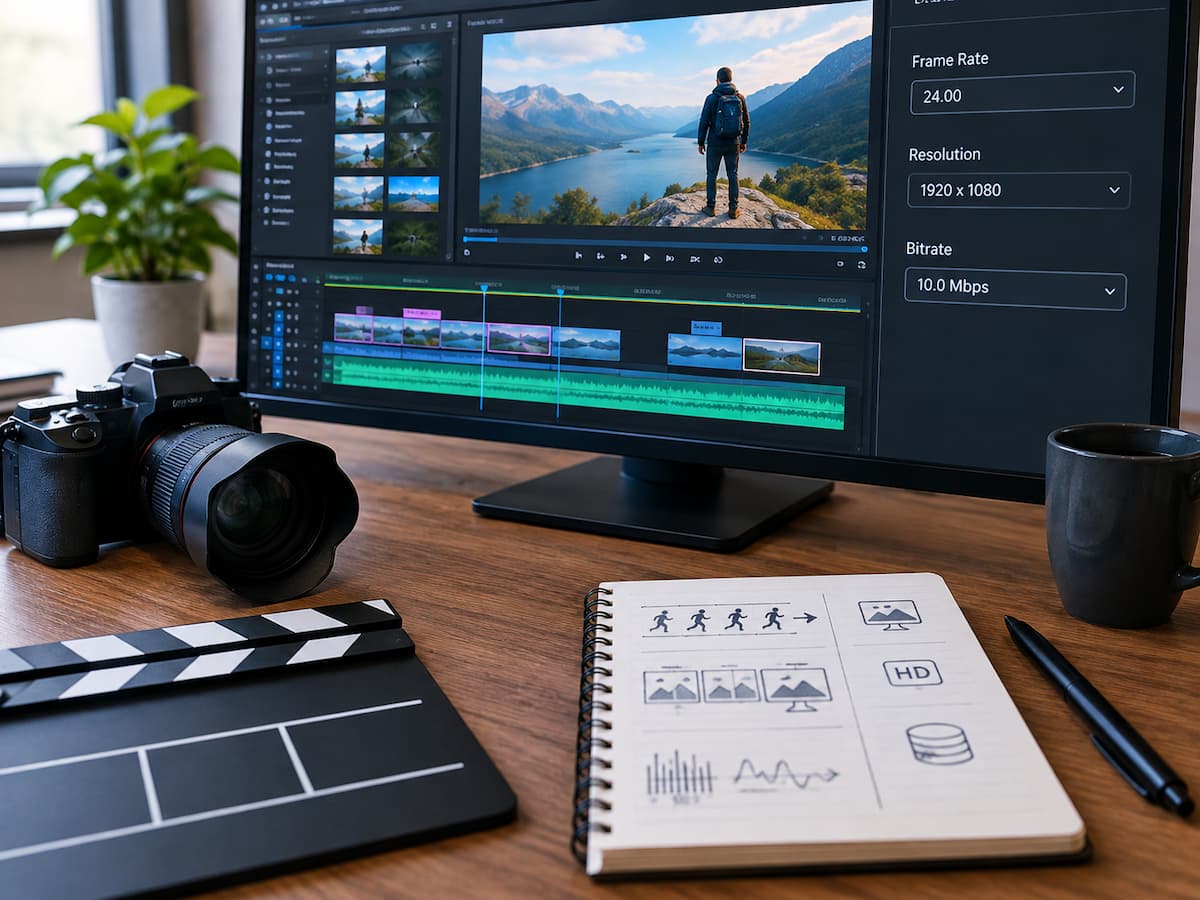
When working with video, 4K, 60 FPS, and 100 Mbps can seem like basic quality rankings. It’s deceptively simple to assume that the biggest number yields the best result. In truth, frame rate, resolution, and bitrate represent three independent video qualities, and choosing one without considering the others might lead to needless file sizes, editing issues, or disappointing results. Resolution is the number of pixels in each frame, frame rate is how often images are collected or displayed, and bitrate is how much data is needed to represent the video as it plays. These components operate together but are not interchangeable. Higher frame rates, pixels, and bitrates do not inherently improve image sharpness, compression, or video quality. Understanding what each setting controls helps creators make better recording and export decisions.
Motion Looks Different at Frame Rate
Frame rate—FPS—measures how many frames are captured or displayed per second of video. A 24 FPS recording has 24 frames per second, while a 60 FPS one has 60. The difference is most obvious when objects or cameras move. High frame rates provide more frames to portray movement, making quick action smoother at the desired frame rate. Sports, gameplay, quick demonstrations, handheld camera movement, and slowed-down film can benefit from high frame rates. However, lower frame rates do not necessarily indicate bad quality. Different motion effects may be useful for some productions. How the film will be used and the desired visual feel will determine the best option. Because the camera supports it, recording at the highest FPS can increase storage and complicate processing.
A Frame’s Resolution Determines Its Visual Detail
Pixel-based resolution describes video image dimensions. A 1920 × 1080 frame has fewer pixels than a 4K UHD frame (3840 × 2160). If the original camera, lens, lighting, and compression preserve adequate detail, additional pixels can provide an editor more room for cuts or reframing. Higher resolution has practical effects. Video files can grow, editing systems may need to process additional image data, and storage needs can rise quickly with several hours of recording. This is why resolution should be based on production rather than “more is always better.” A comprehensive instructional film may benefit from 4K because few visual elements must remain visible, whereas another project may do well with 1080p. The display and how closely the observer examines the image affect the benefit of additional resolution.
Bitrate Controls Video Data Representation
Megabits per second (Mbps) is the amount of data utilized to encode video over time. Compression keeps digital video files manageable, which is crucial. Instead of keeping every pixel of every frame as independent data, codecs try to efficiently express the massive visual information in a video. Bitrate affects how much data the encoder has to preserve visuals. If the bitrate is too low for a resolution, frame rate, codec, and footage type, you may lose details and see compression artifacts. If you increase the bitrate, the file may grow without improving. The relationship is not “higher bitrate equals better video.” A good bitrate allows the encoder to represent content properly without wasting data. What bitrate works depends on scene complexity, movement, codec, encoding settings, and distribution type.
Bitrate and Resolution Work Together
Because resolution and bitrate answer different concerns in video quality talks, they are commonly confused. Bitrate determines how much encoded data is available to describe the changing image over time, while resolution indicates how many pixels are in each frame. Consider two 3840 × 2160 videos. One can be encoded at a far lower bitrate than the other despite having the same resolution. Depending on the codec and settings, the lower-bitrate version may lose delicate textures, complex backgrounds, vegetation, water, smoke, and quick movement. Increasing resolution without adequate data to reflect the new image information can yield unsatisfactory results. Modern codecs can efficiently represent some material at low data rates; therefore, pushing bitrate exceedingly high is not a guarantee. This scenario is why video settings should be examined as a whole rather than individual quality adjustments. Which number is largest is less important than if the three settings are suitable for the content being recorded and the video’s delivery.
Fast-moving Footage Can Be Harder
Scene visual complexity affects compression performance. A video encoder can compress a person speaking in front of a motionless background more easily than a fast-moving camera in a throng. In the second example, fine details can move fast across the screen, and more of the image may change between frames. Sports footage, action scenes, games, water, leaves blowing in the wind, and handheld views with extensive camera movement might strain an encoding system. Bitrate guidelines should be used as starting points, not guarantees. When their visual content differs, two videos with the same resolution and frame rate can react differently. A creator who knows this can record or export footage more wisely. Instead of assuming that a certain bitrate would always yield the same results, analyze what the video contains and whether movement and detail will challenge the compression settings.
High Frame Rates Impact Storage and Editing
A higher frame rate means that the system captures or presents more frames per second. Because codecs and recording systems process data differently, a 60 FPS recording may not have twice the file size of a 30 FPS recording. Higher frame rates might increase the quantity of data a production must analyze and store. This is relevant for long recordings. A developer capturing several hours of gameplay or an event at high frame rate might generate a lot of material before editing. When paired with high resolution, high bitrate, multiple video layers, or demanding effects, higher frame rates can increase editing computer workload. High frame rates are not necessarily bad for creators. When you need smooth or slow-motion flexibility, they are invaluable. Understanding the choice’s cost is crucial. Recording at a higher frame rate may waste storage and processing resources without improving the video.
Recording and Exporting Quality Serve Different Purposes
Settings used to record original footage may not match those used for export. Because original files can be altered, cropped, graded, reframed, or otherwise modified before distribution, camera footage is often higher quality. The final video can be exported using platform and audience-specific options. This contrast explains why a project can start with enormous source files and end with considerably smaller delivery files without issue. When slow motion is used later, a creator may record at a higher frame rate, even though the final video is provided at a lower frame rate. Recording at a higher resolution gives you more flexibility when delivering the final result at a lower resolution. Understanding what the source material needs to accomplish while editing and what the audience requires is crucial. Treating recording and delivery as discrete phases frequently leads to better decisions than using one setting everywhere.
Your Editing Timeline Complicates the Choice
How the editing software organizes and presents the resulting sequence depends on the timeline frame rate. When using several cameras, screen recordings, stock footage, or older files, a project may have footage with varied frame rates. This requires the editing program to establish how the sources should act in sequence. The editor can create flawless slow motion using 60 FPS footage in a 30 FPS project; however, other film may need frame conversion to fit the timeline. Combining frame rates without understanding how the software understands them increases problems. This does not mean every clip must be shot at the same frame rate, but the final frame rate should be set before production. Setting that aim early can help the editor avoid wasteful conversion and better exploit high-frame-rate video.
Selecting Resolution from Actual Production
There are reasons to record in 4K, but sometimes 1080p works. Higher resolution may benefit a creative who crops footage, makes videos for huge displays, or needs more post-production freedom. Someone making simple internet movies may not need higher-resolution files or a harder editing workload. Also important is camera and lens quality. More pixels cannot restore detail lost due to poor focus, illumination, motion blur, or technical constraints. So resolution is only part of image quality. Consider where the video will be seen, how much cropping may be needed, how much footage will be shot, and whether the editing computer can handle the format before choosing the highest choice. A reasonable resolution gives production adequate detail while keeping the process simple.
Choose the Three Settings Together
Each specification is easiest to understand by giving it a simple task. Motion and how often frames are taken or presented determine frame rate. Resolution is about frame size and pixel data. Bitrate represents the amount of encoded data utilized to depict changing video. None of these parameters operate alone. A high-resolution movie with an unnecessary low bitrate may compress, while an overly high bitrate may create massive files without improving. A high frame rate is useful for action or slow motion but may require too much storage and processing for a talking-head movie. Once you establish these linkages, technical standards become easier to read. Instead of choosing “higher quality” settings from a camera menu, producers can choose them based on subject, editing workflow, storage capacity, delivery needs, and appearance.
Conclusion
Frame rate, resolution, and bitrate are three of the most important technical concepts to understand when creating digital video, but they work together and don’t always require the highest possible value. Frame rate determines how motion is captured and displayed, resolution determines the pixel size of the image, and bitrate determines the amount of encoded data used to represent how that image changes over time.
The optimal settings depend on the video production itself. Fast-moving scenes may require a higher frame rate, detailed productions may require a higher resolution, and complex scenes may require a sufficiently high bitrate to prevent overcompression. However, any increase in frame rate results in larger files, higher storage requirements, and less processing power.
A better approach is to reason backward from the final use of the video. Before choosing technical settings, you should consider the subject of the video, the motion patterns, the intended viewing environment, the editing system, the available storage space, and the distribution platform. Once these factors are clear, frame rate, resolution, and bitrate are no longer confusing parameters but practical tools to control the look, motion, and performance of the video throughout the entire production process.
FAQs
1. Is 4K always better than 1080p?
4K has a significantly higher pixel count than 1080p, but that does not mean it is the better choice for every project. The benefits of 4K are most noticeable when more detail, more flexible cropping options, or a higher resolution are required. If the final video has a smaller screen size or the workflow does not require a higher resolution, 1080p remains a reasonable choice.
2. Does 60 FPS improve video quality?
60 FPS primarily changes the way motion is rendered. It makes motion appear smoother and offers extra frames, which is very useful for slow-motion editing. However, it does not automatically make the image sharper or more detailed than footage shot at a lower frame rate.
3. Does a higher bitrate always improve video quality?
Not necessarily. A higher bitrate can reduce compression issues when video encoding is too tight, but beyond a certain limit, the quality improvement from a higher bitrate may be negligible. Codec efficiency, resolution, frame rate, scene complexity, and encoding settings all influence the final result.
4. Why do two video files with the same resolution differ in size?
Resolution only describes the pixel dimensions of an image. Bitrate, frame rate, duration, codec, compression settings, and the complexity of the footage also affect file size. Therefore, two videos can have the same resolution but still require a significantly different amount of storage space.
5. Should I always record at the highest settings my camera supports?
Not necessarily. Higher settings offer more flexibility but usually increase storage requirements and can make editing more laborious. If the project does not require higher frame rates, resolutions, or data rates, using the highest settings can increase the workload without yielding any real benefit.

Riley Bennett writes about content creation, streaming gear, and building efficient creator workflows at estergamer.com. After spending years testing equipment and figuring out what actually works versus what just looks impressive, Riley focuses on practical, no-nonsense advice for beginners starting from scratch. When not writing, Riley enjoys exploring new tech, refining home studio setups, and helping fellow creators skip the expensive mistakes that slow most people down. The goal is simple: honest guidance that gets real results without the marketing fluff.