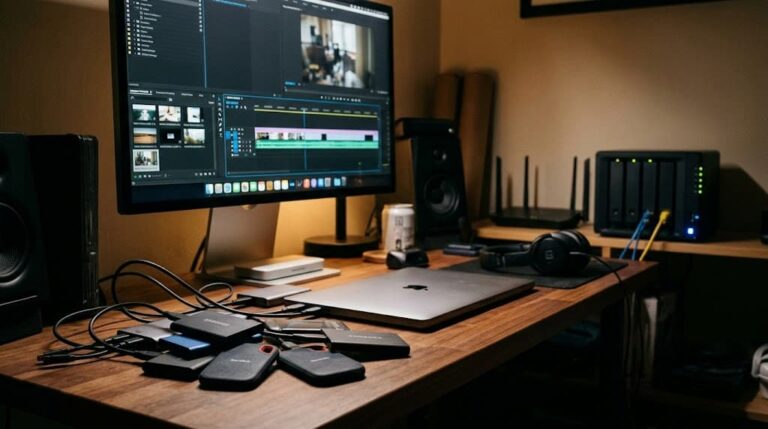
A large video project can consume storage much faster than expected. A single production may include camera originals, multiple audio tracks, project files, proxies, graphics, exports, previews, and temporary cache files. If you keep all of those on one small drive, the problem goes beyond simply running out of space. Slow playback, difficult backups, messy project folders, and disconnected media can make the entire editing process harder to manage.
The right storage setup depends on more than choosing the drive with the biggest capacity or the highest advertised speed. A solo creator editing a few projects each month has different needs from a production team working with several editors. Likewise, an editor working with 1080p footage does not necessarily need the same storage system as someone handling large 4K or higher-resolution projects. The better approach is to design storage around the way the project actually moves from recording to editing, backup, delivery, and long-term archiving.
Start With the Amount of Footage You Actually Generate
Storage planning should begin with your workflow rather than a particular drive. Think about how much footage arrives at the beginning of a typical project, not just the size of the final exported video. A finished 20-minute video might be relatively small, while the original camera files, alternate takes, audio recordings, project files, graphics, proxies, and temporary files can occupy hundreds of gigabytes. A useful starting calculation is:
Expected footage + project files + working space + backup space = required storage capacity
For example, suppose a project begins with 500 GB of camera footage. You may also keep audio, graphics, project files, proxies, exports, and other working files. If another project is already occupying part of the drive, buying a 1 TB drive simply because the original footage is 500 GB leaves very little breathing room. It is better to estimate the storage required for an entire production cycle. Consider how many projects you normally keep active, how long you keep original footage, and whether you move completed projects elsewhere.
Capacity should also account for growth. A creator whose projects currently fit comfortably on a 2 TB drive may eventually start recording at higher bitrates, keeping more source material, or producing longer projects. Buying enough room for the current project but nothing beyond it often creates another storage problem within a short time.
Separate Fast-Working Storage From Long-Term Storage
One of the most useful distinctions in video production is the difference between working storage and archive storage. Working storage is where your editing software frequently reads and writes active project material. It benefits from fast access and a connection capable of moving data efficiently. Archive storage is primarily concerned with holding material safely for longer periods and may prioritize capacity and cost over maximum performance.
These do not have to be the same device. For example, an editor might keep active project media on a fast SSD while moving completed projects to larger-capacity storage after delivery. This avoids spending the entire storage budget on very fast drives when older projects rarely need to be accessed.
Adobe’s current Premiere documentation similarly separates the system drive, media cache, and media storage in its recommended storage approach. Adobe recommends fast SSD or NVMe storage for media and particularly fast storage for cache workloads. The important point is that the fastest storage does not need to hold everything you own.
SSD, HDD, or Both?
For active video editing, SSD storage is generally the more practical choice when responsiveness matters. SSDs have no mechanical moving parts and can provide fast access to project data, which is useful when an editing application is constantly reading media and associated files. That does not make hard disk drives useless.
HDDs can still make sense when large capacity is more important than maximum working speed. A creator may use SSD storage for current projects and larger-capacity HDD storage for backups or archives. This combination can provide a better balance than attempting to store an entire video library exclusively on expensive high-speed SSDs.
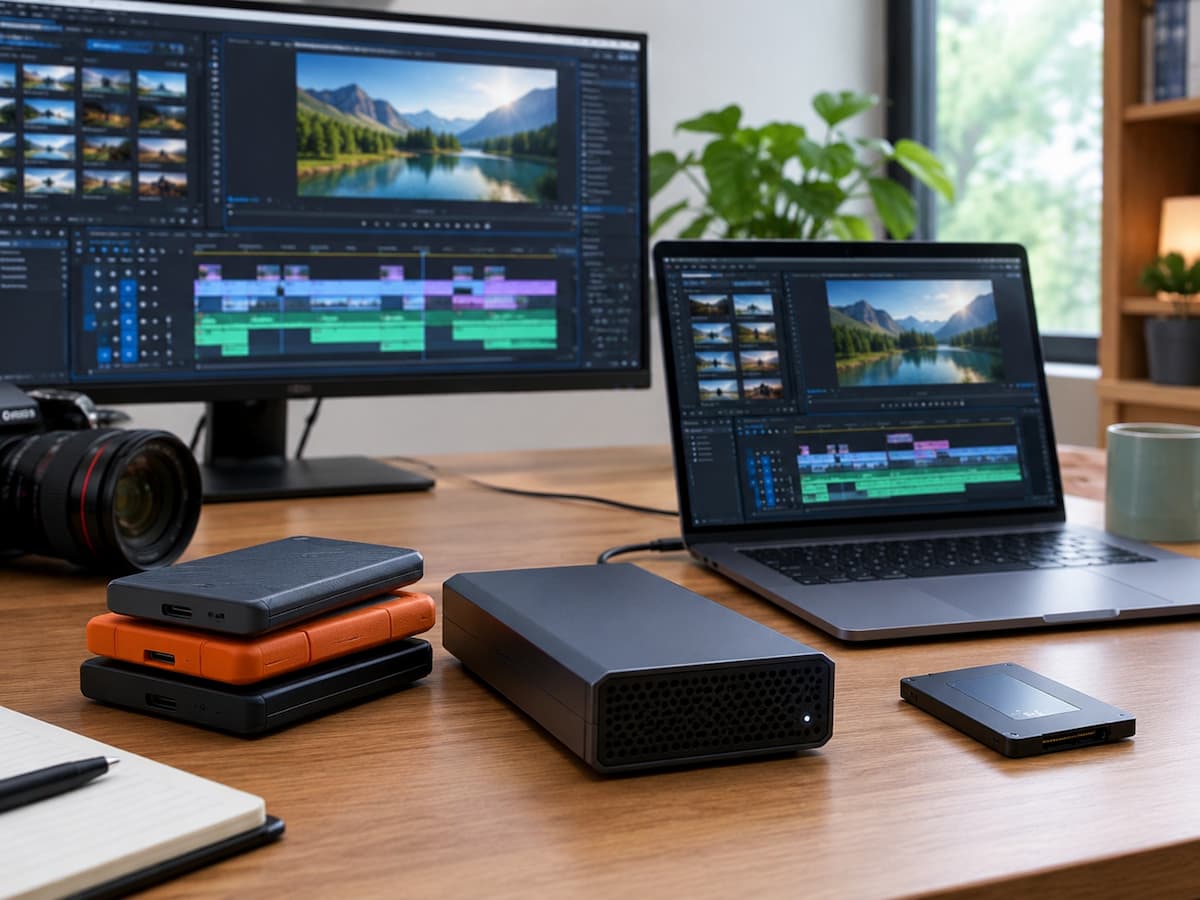
There is also a difference between an internal SSD and an external SSD. A high-performance internal drive can be excellent for a workstation, while a good external SSD can be convenient for laptops and portable workflows. The external drive’s actual performance, enclosure, cable, and computer connection all matter. Advertised drive speed should therefore not be treated as the only deciding factor. The storage device must be fast enough for the workload and connected through an interface that does not unnecessarily restrict it.
Pay Attention to the Connection, Not Just the Drive
A fast SSD connected through a slow interface can become a bottleneck. This is particularly relevant for external storage. USB, USB-C, Thunderbolt, and other connection standards can have very different capabilities depending on the specific implementation. The connector shape alone does not tell you how quickly data will move.
The same principle applies to network storage. A NAS can offer large shared storage, but the network connection between the editing computer and NAS becomes part of the storage system. Adobe’s current Premiere guidance recommends 10 Gbps network connectivity for 4K shared workflows, while its shared-storage guidance notes that larger productions and multiple simultaneous users may require faster connections. For a single creator using an external SSD, a direct connection is often simpler. For a team that needs several computers to access the same media, network storage may make more sense.
When a Portable SSD Makes Sense
A portable SSD is attractive for creators who move between computers, work from different locations, or need a compact active-project drive. Imagine a freelance editor working on a laptop. Keeping an active project on a portable SSD means the project media can travel with the editor rather than filling the laptop’s internal storage.
There is an important distinction, however, between portable convenience and backup protection. A portable SSD should not become the only copy of irreplaceable footage simply because it is convenient. If the drive is lost, damaged, corrupted, or accidentally reformatted, the project can disappear with it. Portable storage works best when it is treated as one part of a broader workflow rather than the entire storage strategy.
When a Desktop External Drive Is the Better Choice
Desktop external drives can make more sense when a creator works primarily from one workstation and needs substantial capacity. They are less convenient to carry around, but that may not matter if the drive spends most of its life beside a desktop computer. A larger external enclosure can provide considerable storage without requiring the creator to constantly move drives between locations.
This can be particularly useful for editors who maintain several active projects or large libraries of source footage. The trade-off is straightforward: desktop storage usually emphasizes capacity and stationary use, while portable storage emphasizes mobility. Choosing between them should therefore start with the question: Where does the editing actually take place?
NAS Storage Is About More Than Capacity
Network-attached storage, or NAS, becomes interesting when multiple computers need access to the same collection of files. Instead of connecting a drive directly to one workstation, a NAS places storage on the network. This can make it useful for studios, small production teams, or creators who work across several computers. But NAS storage introduces additional considerations. Network speed, configuration, storage drives, file permissions, reliability, and the number of simultaneous users can all affect the experience.
A NAS is therefore not automatically a faster solution than a directly connected SSD. Its main advantage may be centralized access and shared storage rather than raw performance. Adobe’s guidance for Premiere Productions distinguishes individual editors from teams and recommends shared storage for collaborative workflows. For a solo editor with one computer, a NAS may add complexity without solving an actual problem. For a team sharing large media libraries, that same complexity may be worthwhile.
Do Not Forget Media Cache and Temporary Files
One storage mistake is calculating only the size of the original video files. Editing applications can create additional files during the production process. In Premiere, for example, the Media Cache includes files such as peak and conformed audio files. Adobe recommends fast SSD or NVMe storage for the Media Cache and notes that old cache files can be removed because they can be recreated when needed.
This creates an important practical distinction: not every file generated during editing deserves permanent storage.
Project media and important project files should be preserved according to your workflow. Temporary cache data can often be managed separately. If a drive becomes mysteriously full, checking cache and temporary files can sometimes reveal why. Simply buying another drive without understanding what is consuming the existing capacity can lead to the same problem again.
Keep Project Files Organized Independently From the Footage
Storage performance cannot compensate for a disorganized project. A useful folder structure might separate camera originals, audio, project files, graphics, proxies, exports, and temporary material. The exact structure can vary, but consistency matters more than having a complicated system.
For example:
Project Name
→ Camera Originals
→ Audio
→ Graphics
→ Project Files
→ Proxies
→ Exports
→ Documents
This makes it easier to move or back up a project without wondering which files belong together. It also reduces the chance of accidentally deleting source material while cleaning up temporary files.
For applications that maintain links between project files and media, moving folders after a project is already underway can create additional work. Adobe’s Premiere documentation specifically recommends planning project and scratch-disk locations carefully, because moving project files later can require associated files to be moved as well.
Build Storage Around the Backup, Not After It
Buying a large drive does not create a backup. If your only copy of a project’s footage exists on one drive, that drive is a single point of failure. The storage system should therefore include another copy of important material.
A practical setup for an individual creator could look like this:
| Storage role | Typical priority |
|---|---|
| Active project drive | Speed and responsiveness |
| Local backup | Capacity and reliability |
| Off-site or cloud copy | Protection against local loss |
| Long-term archive | Capacity and retention |
The exact combination depends on how valuable the material is and how often it needs to be recovered. You should also decide what actually needs to be backed up. For some projects, preserving original footage and the complete project structure is essential. For others, an exported master may be enough for long-term reference.
The key is to make that decision before the drive fails.
Think About Real Capacity Instead of the Number on the Box
A drive labeled 2 TB does not mean you should plan to keep 2 TB of active projects on it. Operating systems, project files, cache data, exports, and future footage all compete for available space. A nearly full working drive also leaves little flexibility when a project suddenly grows.
Instead of choosing capacity based on the minimum required for today’s project, estimate your normal workload over the period between storage upgrades. If you normally have three large projects active at once, calculate their combined working requirements. If you regularly keep completed projects for a year, include that archive requirement too. This approach turns storage capacity from a guess into a workflow calculation.
A Simple Storage Setup for Different Types of Creators
There is no single ideal storage configuration, but several practical patterns cover many workflows.
- For a beginner or occasional editor: a fast internal SSD plus a separate external backup drive can be enough. Keep current projects organized and regularly back up important material.
- For a full-time solo creator: an internal SSD for applications and a dedicated fast SSD for active media can provide a more comfortable setup. A larger-capacity drive can then handle backups or completed projects.
- For a creator with a large video library: combine fast working storage with high-capacity archive storage. Avoid filling expensive high-speed storage with footage that is rarely accessed.
- For a small production team: centralized shared storage may become more useful. At that point, network performance and simultaneous access matter as much as the capacity of the storage itself.
These are starting points rather than rules. The right arrangement depends on project size, editing software, collaboration needs, budget, and how quickly footage needs to be retrieved.
Before Buying Storage, Answer These Six Questions
A storage purchase becomes much easier when you focus on the actual workflow.
Ask yourself:
- How much original footage do I create in a typical month?
- How many projects do I normally keep active?
- Do I edit from one computer or several?
- Do I need to carry the storage with me?
- How quickly do I need active footage to load and play?
- What happens if this particular drive stops working tomorrow?
The last question is especially important. If the answer is that an entire project would disappear, the storage setup needs a backup strategy before the next performance upgrade.
The Best Storage Setup Is the One That Fits the Workflow
Choosing storage for large video projects requires balancing capacity, speed, portability, accessibility, and protection. A fast SSD is useful for active editing, but it may not be the most economical place for years of completed footage. A large HDD can provide affordable capacity, but it may not be the ideal primary workspace for demanding editing. A NAS can solve shared-access problems, but it introduces networking and configuration requirements that a solo creator may never need.
Instead of asking, “What is the fastest or largest drive I can buy?” ask, “Where does each type of project data need to live, and how will I recover it if something goes wrong?”
That question leads to a much more useful storage strategy. Put active projects on storage suited to editing, keep unnecessary cache data under control, separate archives from working files when practical, and maintain independent backups of material that cannot be replaced. The result is not simply more storage—it is a workflow that remains manageable as video projects become larger.

Riley Bennett writes about content creation, streaming gear, and building efficient creator workflows at estergamer.com. After spending years testing equipment and figuring out what actually works versus what just looks impressive, Riley focuses on practical, no-nonsense advice for beginners starting from scratch. When not writing, Riley enjoys exploring new tech, refining home studio setups, and helping fellow creators skip the expensive mistakes that slow most people down. The goal is simple: honest guidance that gets real results without the marketing fluff.