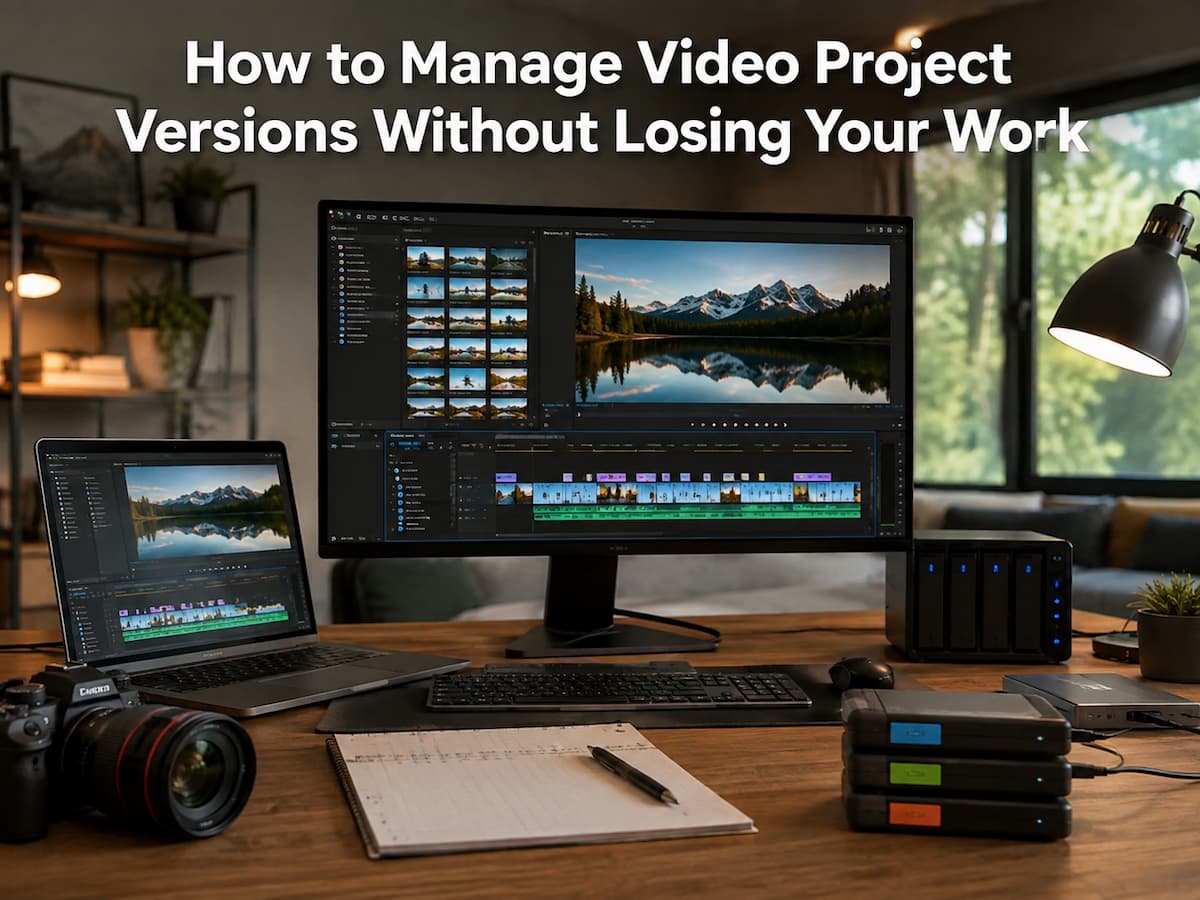
Know What You Save
Video editors sometimes talk about “backing up the project” as if one file includes everything. Modern video projects rarely work that way. Timelines, cuts, transitions, effects, audio arrangements, titles, and media references are normally in the project file. Other elements, such as original video clips, music, images, sound effects, fonts, and proxies, may be stored elsewhere. Copying simply the project file to another computer or device may cause the timeline to open with missing media. Good version management starts with this distinction. Think of the project as instructions that require supporting files. An effective backup solution must secure both project data and media needed to restart or continue editing. Some editing software includes project-management or archive functions that can collect materials, but details vary. Start by learning what your application includes before assuming an archive contains everything.
Name Each Major Version.
A naming like final_video. prproj may seem sensible until you produce final_video_NEW.prproj, then NEW2.prproj, and finally FINAL_REALLY_FINAL.prproj. After numerous iterations, filenames lose useful information. It’s best to establish a naming pattern before the project gets complicated. Use BrandFilm_v003_2026-08-13 for the project identifier, version number, and date. Consistency matters more than format. Version numbers are useful because they provide structure. Saving a new version instead of overwriting the prior milestone is recommended for major changes. A brief description can explain why a version exists, while dates can show when it was made. Avoid lengthy filenames. The name should immediately identify the project and version without opening the file.
Know When to Rewrite
Every minor change may not require a new project file. This can create hundreds of nearly identical variants, making it hard to find what you need. When you reach a significant stage or are about to make a change you may want to undo, create a new version. A major timeline rearrangement, storytelling direction change, color grade change, customer request, or audio modification can justify a new milestone. The same applies before trying an untested modification. If the current cut works and you want to try something new, keep it. That lets you experiment. Documenting every mouse click is not versioning. To establish suitable recovery points.
Export Videos, Separate Project Files
Editors commonly have project files, preview renders, draft exports, final exports, thumbnails, and random test files in a folder. That makes it tougher to identify the functioning project file. Keep exports in a separate folder from project files. Use descriptive export folder names like ClientFilm_Review_v02.mp4 or ClientFilm_Master_ProRes.mov. This distinction is particularly useful when revisiting a project months later. You can immediately separate editable projects from review or delivery videos. It also prevents accidental project deletion when cleaning up outdated exports. A tidy folder organization goes beyond appearance. It reduces errors because the placement indicates a file’s purpose.
Keep Original Media Safe
Treating camera footage as source material rather than disposable working files is a crucial editing habit. An editor may lose media links if they import footage and subsequently rename, move, or delete the originals without a strategy. More crucially, deleting an original clip because it’s not in the timeline can complicate future changes. Avoid moving original footage mid-project and keeping its folder structure. Use the editing software’s media management or relinking capabilities to relocate media. Do not presume an editor can reconstruct a lost MP4 clip from export. A timeline output is finished, not a replacement for editable material.
Create Folders You’ll Understand Months Later
An effective project folder should make sense even when you’re fatigued or returning to work. Camera video, audio, graphics, project files, proxies, exports, and documentation may be organized simply. You don’t need dozens of folders for minor assets. You want to give each material a predictable home. A project may have directories titled 01_Footage, 02_Audio, 03_Graphics, 04_Project, 05_Exports, and 06_Documents. While optional, numbering can keep critical folders together when sorted alphabetically in a file browser. Preventing project-to-project structure changes is more important than names. Finding assets and avoiding mistakes is faster and easier if your brain understands where things belong.
Do Not Confuse Backup With Autosave
While autosave can prevent some editing errors, it is not a complete backup. Depending on how your software handles recovery files, an autosave may help recover from a crash or sudden shutdown. It may not protect you if the computer’s storage fails, files are corrupted, a project folder is unintentionally destroyed, or a drive is lost. Check your editing program’s autosave settings to ensure it creates recovery files properly. Remember that recovery systems have retention constraints. If your project is critical, use automatic recovery and deliberate versions. Autosave protects against editing interruptions. Backups protect the original work.
Make Multiple Copies of Important Projects
A single-storage project is subject to failure. This includes failure, damage, and loss or corruption of a hard disk, laptop, or external drive. Another duplicate should be stored separately for key projects. The arrangement relies on project size, budget, and access frequency. Some editors have a working and backup drive. Others use cloud or network backup and local storage. A key idea is separation. One hardware failure can harm both a project’s only copy and its backup on the same device. Backups are most beneficial when you can still access them after you lose the original.
Carefully Manage Cloud Storage and Sync Folders
While cloud synchronization is helpful, storing a video project in a synced folder does not guarantee a perfect backup. Depending on the service and settings, synchronization can replicate undesirable removals or corrupted files. Large video files might also strain storage and bandwidth. Know if a cloud service offers version history, deleted-file recovery, selective synchronization, and ample media storage before employing it in your workflow. Furthermore, make sure your editing program works safely with projects stored in that environment. Active project files may be stored locally while cloud storage is used for backup or collaboration in specific workflows. The proper setup depends on the software and service, but the idea is the same: identify if a system is synchronizing files or keeping replicas.
Before Risking Changes, Save
Editing decisions might affect huge parts of a project or be easily reversed. Before you make a dangerous structural change, keep the existing version. This may require copying the project file, creating a milestone, or using your editor’s versioning system. Examples include updating a huge timeline segment, adjusting frame-rate interpretation, restructuring material, adding major effects to several clips, or modifying a complex multicamera sequence. A few seconds spent constructing a recovery point can save significant time if the experiment fails. The way you approach creative work changes too. You can experiment with an atypical edit without damaging the working cut if the preceding version is safe.
Simple Change Log for Larger Projects
Consider what changed between revisions of a short personal video. Larger projects with multiple workers are difficult to track. A simple text document can capture key choices and milestones. For instance, v006—shortened introduction, replaced interview portion, updated music—tells you more than the filename. A change log helps when a client requests a revert. Instead of opening every project version to see what changed, you receive a basic edit history. Keep notes brief. You are recording key decisions, not modifying session notes. This is especially effective when a project lasts weeks or months and revisions are spaced apart.
Accept Client Revisions Without Overwriting Your Working Cut
Client revisions are a major cause for version control. Say a client wants you to eliminate a useful sequence. Overwriting a project may make it difficult to restore it. Instead, keep the existing version and make a new revision for the necessary modifications. Name exported videos clearly so everyone understands which revision they belong to. Separating review exports from internal project files can also assist. A client-facing file may be CampaignFilm_ClientReview_v03.mp4, but the editable project has its version number in the project folder. This distinction prevents a typical mistake: considering a review export as the master project.
Understanding Project Archive vs. Backup
You may want to archive a finished video rather than keep it on your editing drive permanently. The archive should contain enough information to make the project usable later. Project-specific “enough” means different things. You may need the final project file, original media, important images, audio, typefaces, license information, project documentation, and a high-quality master export. A lower-resolution reference file is kept by several editors for rapid viewing without starting the app. Verify that archived media can be opened or restored before removing it. An archive created solely by copying files is not beneficial. Consider what you would need if the client requested a new version six months later.
Broken Links and Missing Media
If an editing project indicates missing files, don’t move them randomly until it works. Determine what the application wants and where the media came from. Relink or find functions in many professional editing tools that let you point the software to the right folder. One right folder pick may restore numerous links if several missing files share the same location. Misnaming or reordering anything while troubleshooting can create more missing links. Please examine the issue once the project is resolved. A disk was detached, a folder was renamed, or media was relocated without editing program tools. Fixing the workflow is more significant than fixing one project.
Avoid Deleting Old Versions Too Fast
Keeping every version indefinitely is pointless, but deleting previous versions promptly can be dangerous. Milestones rather than gradual saves are a good compromise. You might keep the accepted structure, a major customer revision, a creative revision, and the final master project. The project, customer expectations, storage capacity, and organizational needs determine how long those versions should stay. Instead of choosing a retention duration casually, follow legal, commercial, or contractual retention obligations for big projects. A simpler retention strategy may work for personal work. Instead of clearing files hastily when storage is short, take a moment to determine what you need before eliminating outdated versions.
Make Your Workflow Repeatable
The finest version-management method is automatic since you’ve made it a habit. Use the same folder template for each project. Use consistent names. Separate project and export files. Keep milestones in place before major changes. Regularly backup active projects. The archive worked deliberately. These practices simplify editing decisions. Instead of worrying about file safety, focus on story, timing, sound, images, and client needs. Workflow need not be detailed. Complex systems are harder to maintain under deadline pressure, therefore simplicity is a benefit.
Conclusion
Good video version control aims to protect creative decisions. An edit can take hours, and a single unintentional overwrite can erase irretrievable work. Clear file names, well-organized folders, meaningful milestones, separate export files, reliable backups, and tested archives significantly reduce this risk. You do not need a complex production system to benefit from this. First, establish a naming convention that you will actually use; create new versions when the edit reaches important stages; keep the original media stable; and keep multiple copies for important projects. Once these habits have become routine, version control ceases to be an extra administrative task and becomes an integral part of the editing process.
FAQs
1. Do I need to save a new version after every edit?
No. Creating a separate version after every minor change can quickly lead to a mess. Save important milestones and create new versions before making major or risky changes to avoid having to undo them later.
2. Is it sufficient to save only the project files?
Usually not. Project files can refer to video, audio, images, and other resources stored elsewhere. Effective backups or archiving must take into account the media and supporting files required for the project.
3. What is the best naming system for video versions?
Use a combination of the project name, the version number, and an optional date or short description. For example, Documentary_v007_2026-08-13 is easier to recognize than a series of files named “final” or “new.”
4. Can I use cloud storage as my only backup for videos?
This depends on the cloud storage service and its configuration. Check whether this version control offers history, recovery of deleted files, sufficient storage space, and reliable access to large media files. Synchronization alone does not provide complete backup protection.
5. How long should older versions of video projects be retained?
There is no fixed retention period. The most important milestone versions to be retained must be determined based on the future needs of the project, client agreements, storage capacity, and any applicable retention regulations. For completed projects, retain only the versions and footage that are actually needed for future adjustments.

Riley Bennett writes about content creation, streaming gear, and building efficient creator workflows at estergamer.com. After spending years testing equipment and figuring out what actually works versus what just looks impressive, Riley focuses on practical, no-nonsense advice for beginners starting from scratch. When not writing, Riley enjoys exploring new tech, refining home studio setups, and helping fellow creators skip the expensive mistakes that slow most people down. The goal is simple: honest guidance that gets real results without the marketing fluff.