There is no such thing as a stream where nothing goes wrong. There are only streams where the problems are small enough that you don’t notice them, and streams where your microphone dies mid-sentence while you’re explaining why your build is meta. I’ve had both. I’ve had streams where my camera froze on a frame that made me look like I was having a religious experience. I’ve had streams where my game audio was routed to my headphones but not the broadcast, so 200 people watched me react to silence for an hour. I’ve had streams where my internet decided to take a smoke break during the final boss fight.
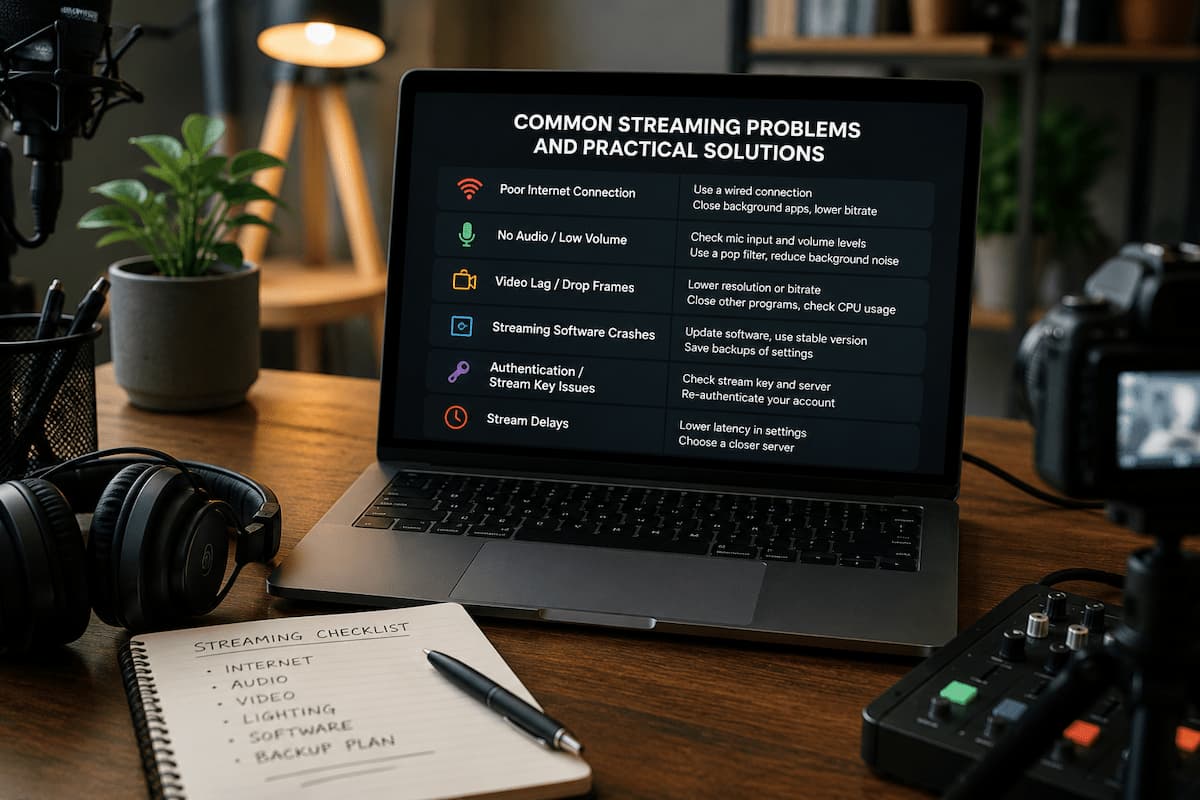
The difference between a streamer who survives and one who rage-quits forever isn’t luck. It’s preparation. It’s not the kind of preparation where you just buy redundant backups of everything. The kind where you know what failure looks like, you know what causes it, and you know the 30-second fix that keeps the show going. Here are the disasters that will find you and exactly how to punch them in the face.
Your Stream Is a Slideshow: Dropped Frames and Encoding Overload
The most common stream killer looks like this: you’re playing smoothly, your chat says “lag,” you check your stream, and your beautiful 60 FPS gameplay has turned into a series of still photographs. Maybe one frame every three seconds. Maybe the audio keeps going but the video is frozen. Maybe the whole thing buffers endlessly for viewers.
This is almost never your internet speed. I know you just ran Speedtest and it says 100 Mbps upload. Speedtest lies to streamers. It measures burst speed to a nearby server. Streaming measures sustained upload to a distant server over a protocol that hates inconsistency. Your internet is fine. Your setup is choking.
Three causes, three fixes:
Cause 1: Bitrate too high for your actual sustained upload. Your ISP throttles. Your neighborhood shares bandwidth. Your roommate starts a 4K Netflix binge. The fix isn’t “get faster internet.” It’s “give yourself a buffer.” Stream at 70% of your measured upload speed. If Speedtest says 10 Mbps upload, stream at 6,000 kbps max. If it says 5 Mbps, stream at 3,000 kbps. That 30% buffer absorbs real-world inconsistency.
Cause 2: CPU or GPU overload. You’re encoding with x264 on a 4-core processor while playing a game that eats all four cores. Your PC is crying. Open Task Manager. If CPU is pinned at 95%+, switch to hardware encoding (NVENC if you have NVIDIA, QuickSync if you have Intel). If GPU is pinned, lower your in-game settings. Your stream quality matters more than your shadow quality.
Cause 3: WiFi. I don’t care how good your router is. WiFi is a shared radio signal that drops packets when your microwave runs, when your neighbor uses their baby monitor, or when the wind blows wrong. Ethernet cable. $10. Problem solved. I fought this for six months. Six months of dropped frames that vanished the moment I plugged in a cable. Don’t be me.
⚡ The 30-Second Stream Health Check
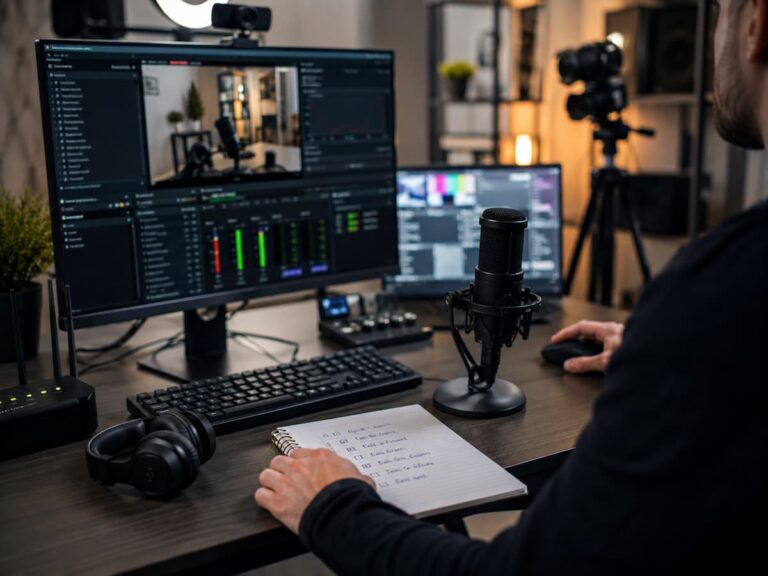
Open OBS. Look at the bottom-right corner. If “Dropped Frames” is anything above 0%, you have a problem. If “Rendering Lag” is above 0%, your GPU is overloaded. If “Encoding Lag” is above 0%, your encoder is overloaded. These numbers don’t lie. Speedtest does. Trust the OBS stats panel. It measures your actual stream health in real-time. Check it before every stream. Check it during your stream. If numbers appear, fix them immediately. Don’t wait for chat to tell you.
Your Voice Sounds Like a Robot in a Blender: Audio Distortion and Glitching
Audio distortion doesn’t announce itself. It creeps in. One minute you sound fine, the next your voice is crackling, popping, or developing a digital stutter that makes listeners think their headphones are broken. Then they leave, because nobody tolerates bad audio.
The most common culprit is a sample rate mismatch. Your microphone is recording at 44.1kHz. Your OBS project is set to 48kHz. Your interface is outputting at 96kHz. Your computer resamples on the fly, badly, and the result is artifact city. It sounds like metallic crackling during sibilance and plosives. It gets worse when you get louder.
Fix: Pick one sample rate. 48kHz is the standard for video. Set your microphone, audio interface, Windows sound settings, and OBS all to 48kHz. Every device. Every program. No exceptions. Mismatched sample rates are the silent killer of stream audio, and they don’t show up as “errors” anywhere. They just make you sound broken.
Another cause: USB power management. Windows “helpfully” puts USB devices to sleep to save power. Your microphone drops out for 200ms. Listeners hear a skip. Fix: Open Device Manager, find your USB audio device, open Properties, go to Power Management, uncheck “Allow the computer to turn off this device to save power.” Do this for every USB audio device you own. Windows will fight you. Fight back.
💡 What I Learned the Hard Way
I spent three weeks convinced my $250 microphone was defective because my voice had a constant “digital crunch” on certain words. I initiated a return. I bought a replacement. Same crunch. The real problem? My interface was set to 96kHz, OBS was set to 48kHz, and Windows was set to 44.1kHz. Three devices, three sample rates, zero communication. The crunch was resampling artifact. I matched everything to 48kHz and the crunch vanished. I had to apologize to the microphone manufacturer for the angry email. The problem was never the gear. It was the settings.
The Black Screen of Death: Game Capture Not Working
You hit “Start Streaming.” You open your game. Your viewers see a black screen. They hear your voice. They hear game audio. But the video is nothing. This is the game capture problem, and it has murdered more first-time streams than any other issue.
Here’s why it happens: modern games use hardware acceleration. They render on your GPU using DirectX or Vulkan. OBS Game Capture hooks into this rendering pipeline. If the game launches after OBS, or if the game runs as administrator while OBS doesn’t, or if the game uses a weird fullscreen mode, the hook fails silently. You get blackness.
The fix hierarchy:
- Run OBS as administrator. Right-click the shortcut. “Run as administrator.” This fixes 60% of game capture issues immediately, because now OBS has the permissions to hook into games that also run elevated.
- Use “Capture Specific Window” instead of “Capture Fullscreen Applications.” Fullscreen applications sometimes hide their render surface from capture. Windowed or borderless windowed mode is more reliable.
- If the game still shows black, switch to Display Capture temporarily. It’s less efficient (captures your entire monitor), but it works on everything. Use it as a backup while you troubleshoot Game Capture.
- For games that absolutely refuse to cooperate (some anti-cheat systems block capture hooks), use Window Capture with the game in borderless windowed mode. This bypasses the render hook entirely and captures the window frame.
I streamed an entire indie game using Display Capture because I couldn’t get Game Capture to work. Used 20% more CPU. Looked identical to viewers. Nobody knew. Sometimes the “wrong” method that works is better than the “right” method that doesn’t.
✅ The Pre-Stream Visual Verification
Before you ever go live, start your game. Look at the OBS preview window. Do you see the game? Good. Now minimize the game. Do you still see it in the preview? Good. Now maximize it again. Still there? Good. Now alt-tab to your browser. Check the preview. Is it frozen on the last frame, or still updating? If it’s frozen, your capture source is tied to window focus and will break when you click elsewhere. Fix this before you have 50 viewers watching a frozen screen while you read chat. This 60-second test prevents the most embarrassing technical failure a streamer can have.
Chat Is Screaming and You Can’t Hear Them: Overlay and Alert Failures
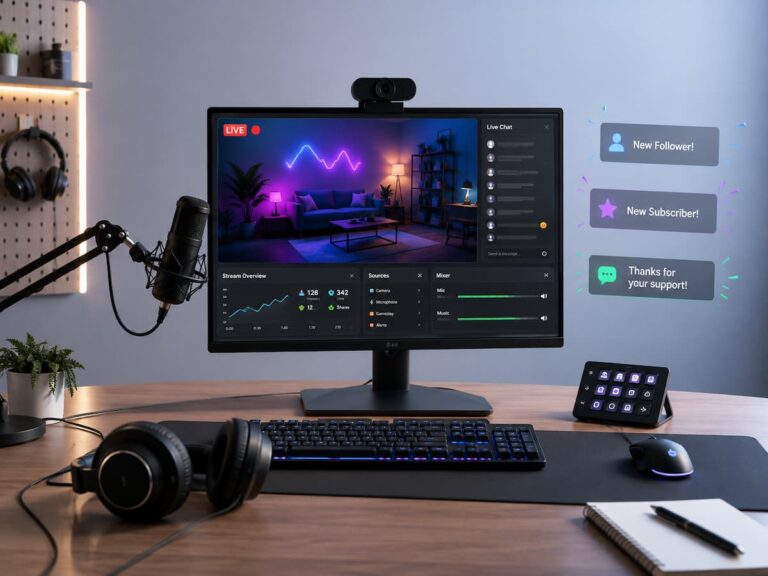
Your chat overlay stopped working. Your follower alerts aren’t firing. Your donation notifications are silent. You don’t notice because you’re focused on the game. Meanwhile, someone donated $20 and got zero acknowledgment. They feel ignored. They don’t come back.
This usually happens because of browser source cache corruption. OBS uses embedded Chromium browsers to display overlays from Streamlabs, StreamElements, or custom URLs. These browsers cache data. When the cache corrupts, the overlay loads but doesn’t update. It looks fine to you. It’s actually frozen. Chat messages aren’t passing through. Events aren’t triggering.
Fix: Right-click the browser source in OBS. Select “Refresh Cache of Current Page.” Do this before every stream. It’s a 3-second habit that prevents silent overlay death. If that doesn’t work, delete the browser source and recreate it from scratch. Copy-paste the URL from your overlay provider. Don’t copy the source; create a new one. Corrupted sources carry their corruption with them.
Another common failure: your overlay provider (Streamlabs, etc.) changed their API or URL structure. Your old URL is deprecated. The overlay loads a blank page or an error message that’s too small to read in the OBS preview. Fix: log into your overlay provider, copy the current widget URL, and replace the old one. Do this monthly. APIs change constantly.
Your Face Is a Potato: Webcam Issues
Your webcam was fine yesterday. Today it’s 15 FPS, grainy, or displaying a “camera in use by another application” error. Or worse: it’s showing the wrong camera entirely, and your audience is staring at your ceiling fan or your second monitor full of Discord DMs.
Windows is greedy with cameras. Zoom, Teams, Skype, Discord, and even some browser tabs grab camera access and refuse to let go. If you opened a meeting app earlier and minimized it instead of closing it, it might still hold the camera lock. OBS can’t access it. You get blackness or “device not available.”
Fix: Open Task Manager. Kill every application that could possibly use a camera. Browsers included—some websites (Google Meet, etc.) hold camera access even in background tabs. Then restart OBS. If the camera still fails, unplug it and plug it back in. USB devices sometimes need a physical reset to renegotiate their connection.
For grainy or low-FPS webcam output: check your lighting. Webcams auto-expose. In low light, they drop their shutter speed to let in more light, which drops their frame rate. A $15 desk lamp aimed at your face will restore 30 FPS faster than any software tweak. Light is the frame rate fix nobody talks about.
🚫 The Camera Privacy Trap
Windows updates sometimes reset camera privacy settings. After a major update, your camera might be “disabled” at the OS level for “privacy.” OBS shows a black source. You blame the camera. You blame the cable. You reinstall drivers. The actual fix? Settings > Privacy > Camera > “Allow apps to access your camera.” Turn it on. Windows silently disables this after updates and doesn’t tell you. I troubleshot a “dead” camera for an hour before discovering this. An hour of my life. Gone. Because Windows decided I needed privacy from myself.
Everything Worked Yesterday and Nothing Works Today: The Update Curse
The most terrifying stream problem isn’t a specific error. It’s the “nothing changed but everything is broken” problem. You didn’t change settings. You didn’t change hardware. You streamed perfectly yesterday. Today, OBS crashes on launch, or your mic has a 2-second delay, or your stream key is “invalid.”
Something changed. You just don’t know what. Windows updated overnight. Your graphics driver auto-updated. Your OBS auto-updated. Your overlay provider pushed a silent backend change. One of these broke the fragile ecosystem of dependencies that makes streaming work.
Here’s my troubleshooting hierarchy for mystery failures:
| Step | What to Do | Why It Works |
| 1. Reboot | Actually restart the computer. Not sleep. Not hibernate. Full restart. | Clears memory-resident conflicts, releases hardware locks, resets driver states. |
| 2. Check updates | Did Windows, GPU drivers, or OBS update? Check version numbers against yesterday. | Identifies the variable that changed. Roll back if needed. |
| 3. Test in safe mode | Launch OBS with “–safe-mode” flag. Disables third-party plugins. | Isolates whether the problem is OBS core or a plugin conflict. |
| 4. Reset stream key | Copy a fresh stream key from your platform. Old keys expire or get invalidated. | Platform-side changes can invalidate keys without warning. |
| 5. Restore backup | Load a known-good OBS scene collection or profile backup. | Proves whether the issue is settings corruption or system-level. |
I keep a “known good” OBS profile saved after every successful stream. If something breaks, I load that profile. If the problem persists, it’s system-level. If the problem vanishes, it’s settings-level. This binary test saves hours of random tweaking.
🎯 The Backup Habit That Saves Careers
After every stream where everything works, export your OBS profile and scene collection. File > Show Profile Folder. Copy the entire folder to a cloud drive or USB stick. Name it with the date. Do this weekly. When disaster strikes—and it will—you can restore a working configuration in 30 seconds instead of rebuilding from memory at 2 AM while your scheduled stream is supposed to be live. I have 40 backups spanning two years. I’ve needed them three times. Each time, they turned a potential cancellation into a 5-minute delay. Backups are boring. Being unable to stream because you didn’t back up is career-threatening.
When to Kill the Stream and Start Over
Not every problem is fixable mid-stream. Some issues require a full restart, a settings rebuild, or hardware intervention that can’t happen while you’re live. Knowing when to quit is as important as knowing how to fix things.
End the stream if: your internet is completely down (obviously), your audio is so distorted that listening is painful, your capture source is broken and you can’t fix it in 2 minutes, or you’re so frustrated that your energy is toxic. Viewers forgive technical issues. They don’t forgive a streamer who is visibly angry, defeated, or taking out their frustration on chat. A 10-minute “technical difficulties, back soon” break is better than 2 hours of misery.
I ended a stream once because my audio interface died completely. No backup. No fix. I told chat exactly what happened, thanked them for showing up, and promised to be back tomorrow. Next stream had higher viewership than the broken one. Honesty and brevity beat stubbornness every time.
⚠️ The Honesty Principle
Your audience is not stupid. They know when something is wrong. Pretending everything is fine while your stream is a slideshow insults their intelligence. “Hey, I’m having some technical issues tonight, going to restart and be back in 5” builds trust. “What do you mean lag? Looks fine on my end” destroys it. Acknowledge problems. Fix them visibly. Let chat see your troubleshooting process. Some of my most engaged viewers joined during a tech-restart because they wanted to see if I could fix it. Transparency turns failure into content. Denial turns failure into unsubscribes.
Streaming is held together by duct tape, hope, and the knowledge that something will break the moment you stop expecting it to. The streamers who last aren’t the ones with perfect setups. They’re the ones who’ve broken everything already and know exactly which cable to wiggle, which setting to toggle, and which backup to restore. Build your disaster playbook now, before the disaster finds you. Because it will find you. Usually on a Tuesday. Usually when you’re trying to show off.

Riley Bennett writes about content creation, streaming gear, and building efficient creator workflows at estergamer.com. After spending years testing equipment and figuring out what actually works versus what just looks impressive, Riley focuses on practical, no-nonsense advice for beginners starting from scratch. When not writing, Riley enjoys exploring new tech, refining home studio setups, and helping fellow creators skip the expensive mistakes that slow most people down. The goal is simple: honest guidance that gets real results without the marketing fluff.