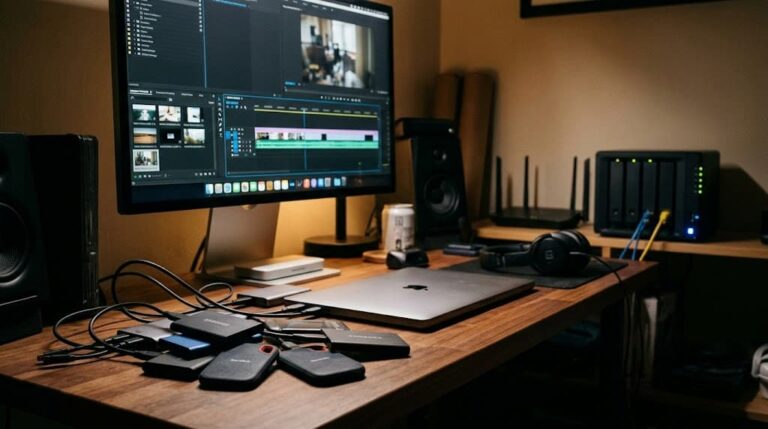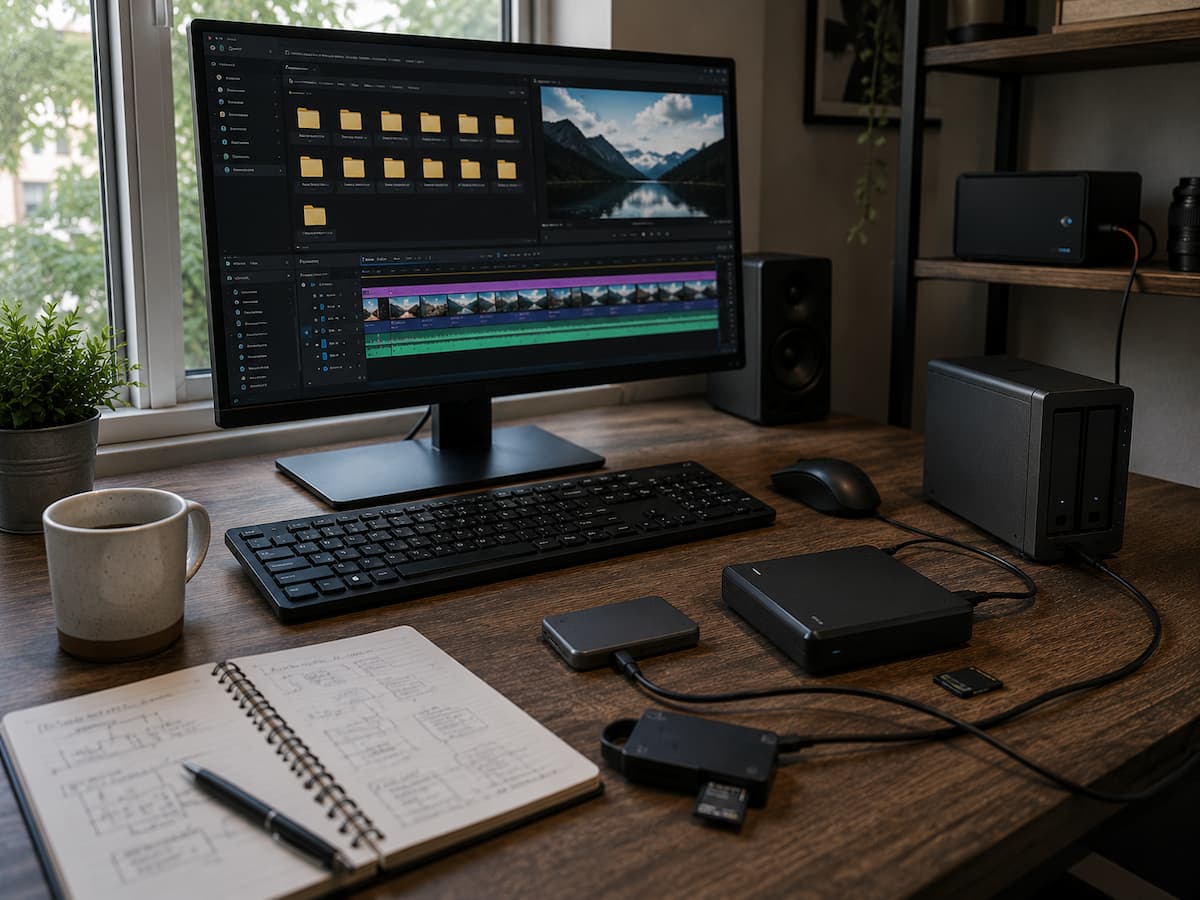
Moving files from one storage device to another isn’t enough to constitute a solid backup procedure. Selecting what requires protection, determining where to store backups, setting a schedule for how often to execute these backups, and planning for data recovery in the event of an error are all part of this process. This tutorial will show you the ropes for building a simple backup system for your artistic endeavours.
The Importance of a Separate Backup Procedure for Creative Projects
There are aspects of creative files that make them difficult to secure. They rely on several supplementary files, are often modified, and tend to be big. Everything from raw camera footage to audio recordings, project files, visuals, soundtracks, proxies, and final export versions can be found in a video project. Preserving the project is more than just saving the finished video. You might need the raw video and editing project if you need to make any adjustments later. Photographers, designers, musicians, and animators are all part of the creative community and are subject to the same premise.
The fact that creative labour is in a perpetual state of flux is another issue to consider. A backup made two weeks earlier can miss the most recent version of a crucial project. Because of this, the frequency of backups is equally important to the location of backups. If your workflow is good, it should address these four points: Which files are safeguarded? What happened to the copies? At what intervals are they revised? What is the estimated time for the project’s recovery? Even without a reliable backup system, you might have duplicates of your files if you can’t answer these questions.
Identify What You Actually Need to Back Up
Before buying storage or subscribing to a backup service, determine what your creative projects actually contain. Not every file needs the same level of protection. Start with the irreplaceable material. This may include original camera footage, RAW photographs, master audio recordings, project files, illustrations, 3D assets, animation files, and important documents. Then identify files that can be recreated easily. Temporary render files, cache folders, and proxy media may not require the same backup treatment as original source files.
Typical Creative Project Files Include:
- Original video footage
- RAW photographs and image originals
- Audio recordings and multitrack sessions
- Video and audio project files
- Graphic design source files
- Fonts and custom assets where licensing permits storage
- Animation and 3D project files
- Project-specific graphics and illustrations
- Important documents and production notes
- Final master exports
Think carefully about dependencies. A project file may open successfully on another computer but display missing media if the original assets were not backed up. A useful backup should preserve enough of the project for you to continue working, not merely the final file that was exported for delivery.
Understand the 3-2-1 Backup Principle
The 3-2-1 backup principle is a widely used approach to data protection. The basic idea is to maintain at least three copies of important data, stored on at least two different types or locations of storage, with at least one copy kept away from the primary working environment. For a creative professional, the working computer might contain the active project. A local external drive could provide a second copy, while a cloud service or physically separate drive provides another copy elsewhere.
| Backup Layer | Example | Purpose |
|---|---|---|
| Working copy | Main computer or editing workstation | Daily creative work |
| Local backup | External hard drive or NAS | Fast recovery from accidental deletion or drive failure |
| Off-site backup | Cloud backup or separate physical location | Protection from theft, fire, or major local damage |
The 3-2-1 concept is a framework rather than a rigid rule. A small photographer and a production studio may implement it differently. The key principle is to avoid relying on a single copy in a single location.
Choose the Right Storage for Your Workflow
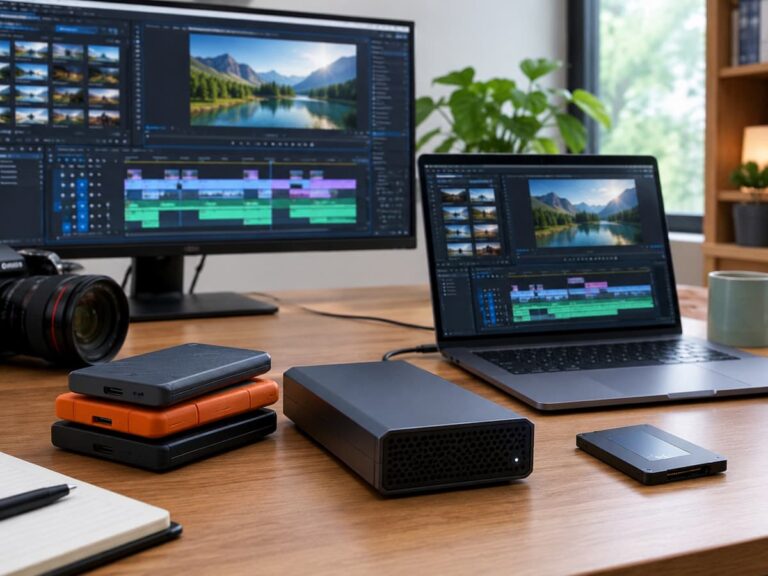
Different storage options serve different purposes. There is no single drive or service that is perfect for every creative workflow. External Hard Drives: Traditional hard disc drives offer large capacities at relatively low cost. They are useful for storing large video libraries, project archives, and secondary backups. They are slower than SSDs and contain moving parts, so they should be handled carefully. External SSDs: SSDs are faster and more resistant to physical shock than traditional hard drives. They are excellent for active projects, portable editing, and speedy file transfers. However, larger capacities can cost more.
Network Attached Storage: A NAS can provide centralised storage for a home studio or a small creative team. Multiple computers can access shared files, and some NAS systems support automated backups and redundancy features. However, a NAS should not automatically be considered a complete backup. If it is located in the same building as the main computer, it may not protect against theft, fire, or other major events. Cloud Storage and Cloud Backup: Cloud services can provide off-site protection and convenient access. They can be particularly useful for project files and smaller assets. Large video libraries, however, may take considerable time and bandwidth to upload. The best solution is often a combination of storage types rather than relying on one option.
Create a Consistent Project Folder Structure
Good organisation makes backups easier because you know exactly where to find important files. If creative assets are scattered across download folders, desktop folders, external drives, and temporary locations, it becomes easy to overlook something. Create a consistent folder structure that you can reuse for every project.
Project_Name
├── 01_Project_Files
├── 02_Footage
├── 03_Audio
├── 04_Graphics
├── 05_Assets
├── 06_Proxies
├── 07_Exports
├── 08_Documents
└── 09_Archive
The exact structure is not important as long as it makes sense for your work. The goal is consistency. For example, a video editor should know where original footage belongs, where project files are stored, and where final exports are placed. A photographer may organise their folders by year, client, and project. Keep active projects together whenever possible. This makes it easier to back up the complete project rather than searching for individual files across multiple locations.
Decide How Often to Back Up
The correct backup frequency depends on how quickly your work changes and how much data you can afford to lose. If you work on a project every day, a monthly backup is not enough. If you make changes only once a month, daily backups may be unnecessary. Consider how much recent work you could realistically recreate. This period is sometimes described as your acceptable data-loss window.
| Workflow | Suggested Backup Frequency | Reason |
|---|---|---|
| Daily professional production | Multiple times per day or continuously | Frequent changes and high replacement costs |
| Regular freelance work | Daily | Protects recent project changes |
| Active personal projects | Daily or several times per week | Balances protection and convenience |
| Occasional creative work | After major changes | Reduces unnecessary backup activity |
Remember that backup frequency should reflect the importance of the project. A client production with a tight deadline deserves more frequent protection than a temporary experiment.
Automate Routine Backups
Manual backups are better than no backups, but they depend on human memory. The problem is that creative work can become busy. After several hours of editing, it is easy to forget to copy the latest project files. Automated backup software can reduce this risk by running according to a schedule or responding to changes. For example, you might configure a system to back up active project folders every evening and perform a more comprehensive backup overnight. Automation should not mean ignoring the backup system. It’s important to verify that the jobs are completing successfully.
Automation Works Best When You:
- Select the correct folders to protect.
- Exclude unnecessary temporary files when appropriate.
- Set a schedule that matches your workload.
- Monitor failed backup notifications.
- Test restoration regularly.
- Keep at least one backup separate from the main computer.
The goal is to make backing up part of the normal workflow rather than a task that requires constant attention.
Use Cloud Storage as Part of the Strategy
Cloud storage can be valuable, but it is important to understand the difference between synchronisation and backup. A synchronisation service is designed to keep files consistent across devices. If you delete a file or an unwanted change synchronises across devices, the result may affect multiple copies. A proper backup system should provide mechanisms such as version history, retention, or recovery options that allow you to restore earlier versions when available. Cloud services are particularly useful for maintaining an off-site copy. However, large creative projects can consume substantial upload bandwidth and storage capacity. Before choosing a cloud solution, consider the total size of your library, upload speed, recovery speed, retention policies, and the provider’s terms.
Warning: Never assume that a folder appearing on two computers automatically means you have two independent backups. Synchronised copies can share the same deletion or corruption event.
Protect Against Accidental Changes and File Corruption
Backup protection is not only about hardware failure. Occasionally the problem is an incorrect edit, accidental deletion, or a corrupted project file. Versioning can help by keeping previous versions of files. If a project becomes corrupted or you accidentally overwrite important work, you may be able to restore an earlier version. For creative projects, versioned project files can also be useful. Instead of repeatedly overwriting one file, you might save milestone versions, such as the following:
Project_v01
Project_v02
Project_v03
Project_Final
Project_Final_Approved
Clear naming helps you understand the project’s history and reduces the risk of accidentally replacing a useful version. Do not create hundreds of versions without a system. The purpose is to preserve meaningful milestones rather than create unnecessary clutter.
Separate Active Projects From Long-Term Archives
Not every project needs to remain on your fastest working drive forever. Once a project is complete, consider moving it into an organised archive. An archive might include the final master, project files, original source material, and important supporting assets. You may not need to keep temporary render files or cache data. Before archiving, confirm that the project can actually be reopened if necessary. A video project may depend on external assets, plugins, fonts, or specific software versions. For long-term storage, document important details such as the software used, project version, and any unusual dependencies. Creative archives should also be reviewed periodically. Storage technology changes, drives age, and software compatibility can disappear over time. An archive that has never been tested may not be useful when you finally need it.
Verify That Your Backups Actually Work
A backup is only valuable if you can restore the data. This is why testing is one of the most overlooked parts of backup planning. Periodically select a sample of backed-up files and restore them to another location. Open project files and confirm that important media is available. For large creative projects, test the entire restoration process occasionally. You may discover that the project file was backed up, but the linked footage was not.
- Can you access the backup?
- Are the expected files present?
- Can project files be opened?
- Are linked media files available?
- Are previous versions accessible?
- Can you restore files without overwriting originals?
- How long would a full recovery take, in practice?
A successful test gives you confidence that the backup system is more than an assumption.
Build a Recovery Plan Before You Need It
Backup and recovery are closely connected, but they are not exactly the same thing. A backup answers the question, “Where is my copy?” A recovery plan answers, “How do I get back to work?” Imagine your editing computer fails the day before a deadline. You may have backed up your project successfully, but you still need another computer, software, storage, and time to restore everything. Think about the equipment and information required to resume work. Keep important account recovery information accessible through secure methods. Know where your backup drives are located. Understand how to restore your files and identify the software needed to open your projects. If your work is business-critical, consider documenting a simple recovery procedure that another trusted person could follow if you are unavailable.
Common Backup Mistakes Creative Users Make
One of the most common mistakes is assuming that an external drive is automatically a backup. If you move the only copy of your project onto that drive, you have simply changed where you store the original. Another mistake is keeping all copies in the same physical location. A single theft, fire, flood, or other event can still destroy multiple drives. Some users also back up only their finished exports. This protects the final result but not the source material needed for future revisions.
- Relying on one storage device
- Keeping every backup connected permanently
- Never testing restoration
- Ignoring backup failure notifications
- Backing up only the final exported file
- Forgetting project dependencies
- Using poorly labelled folders
- Deleting originals immediately after creating one copy
- Confusing synchronisation with independent backup
- Failing to protect older project versions
The solution is not necessarily a more expensive system. Often, better organisation and a clear routine provide a significant improvement in reliability.
A Practical Backup Workflow for Creative Projects
A simple workflow can protect most creative projects without becoming difficult to manage.
- Step 1: Work From an Organised Project Folder
- Step 2: Maintain the Working Copy
- Step 3: Create an Automated Local Backup
- Step 4: Maintain an Off-Site Copy
- Step 5: Protect Important Versions
- Step 6: Archive Completed Projects
- Step 7: Test Recovery
- Step 8: Review the System
This workflow can be adjusted for a solo creator, freelancer, small studio, or larger production team. The important thing is that the process is consistent and repeatable.
Creative Project Backup Checklist
- Important creative files have been identified.
- Original source material is protected.
- Project files are stored in organised folders.
- At least one local backup exists.
- At least one backup is stored separately from the primary workspace.
- Automated backups are configured where practical.
- Backup jobs are monitored for errors.
- Important project versions are preserved.
- Completed projects are archived systematically.
- Backups are tested through actual restoration.
- A recovery process is documented.
- Backup storage capacity is reviewed regularly.
If you can confidently verify these items, you have a much stronger foundation for protecting creative work.
Conclusion
More important than purchasing the greatest storage device available is establishing a system that safeguards your work at every stage of your backup cycle. This is especially true for creative endeavours. In your process, consider projects in progress, unfinished archives, ongoing projects, original source material, and the chance of inadvertent alterations. First, get your projects in order and identify which files are essential. The next step is to make several copies using an appropriate mix of on-site and off-site storage. Back up your data automatically whenever you can, but remember that automating something doesn’t mean you can skip monitoring and testing.
Recovery should be your top priority. An untested backup is nothing more than a guess. Make sure you can get back to work if your main computer unexpectedly died, restore files on a regular basis, and double-check that projects open properly. Many hours of work go into creative projects. By implementing a reliable backup procedure, you can protect your investment and ensure that your hard work over the past several months will not be lost due to hardware failure, accidental deletion, or unforeseen events.
FAQs
1. Is the space in the cloud sufficient for imaginative backups?
Because it offers off-site protection, cloud storage can play a significant role in backup strategies. But backup isn’t the only purpose of some cloud services. There is a risk that synchronised folders will reflect unintended changes or deletions. Where applicable, try to find features like version history, retention, or specialised backup capabilities. Think about the service’s maintenance cost, storage limits, recovery times, and upload speeds for huge video libraries.
2. When should one back up creative projects?
The frequency of modifications to your work and the amount of recent work that you can afford to lose will determine the answer. While a regular hobbyist might only require backups after major changes, someone working on a client project every day might benefit from continuous or daily backups. Projects that are more important or have a tight deadline should be backed up more often. One benefit of automation is the decrease in memory load.
3. Is it sufficient to have two external hard drives?
The usefulness of two external discs as a security measure is conditional on their application. You run the risk of losing both drives in the same theft or natural catastrophe if you leave them attached to the computer. A more robust strategy would be to maintain two copies of your data: one on-site for easy restoration and another off-site. At regular intervals, you should check the reliability of both drives and replace them when they stop working well or are no longer practicable.
4. Are previous revisions of my creative files obsolete?
It can be really helpful to retain some older versions. Projects involving creativity frequently undergo substantial revisions, and a subsequent update may inadvertently eliminate an asset from a previous version. You can restore earlier work by using version history or naming files based on milestones. You should not feel obligated to save each temporary version indefinitely. Maintain significant milestones instead, and always use the same naming convention so that it’s easy to tell which version is the most recent.
5. If my primary drive stops working, what am I to do?
The first thing you should do if you suspect a failing drive is holding crucial data that hasn’t been backed up is to not use it frequently. Check to see if your backup is up-to-date and find the latest restoreable version. Transfer the project to a new hard drive or PC if the backup is in good shape. Instead of using aggressive repair methods that could make recovery more difficult, think about hiring a professional data recovery service if you have valuable data and no backup.

Riley Bennett writes about content creation, streaming gear, and building efficient creator workflows at estergamer.com. After spending years testing equipment and figuring out what actually works versus what just looks impressive, Riley focuses on practical, no-nonsense advice for beginners starting from scratch. When not writing, Riley enjoys exploring new tech, refining home studio setups, and helping fellow creators skip the expensive mistakes that slow most people down. The goal is simple: honest guidance that gets real results without the marketing fluff.